Last year saw the location-based entertainment industry grind to a halt, however now it seems there may be light at the end of the tunnel for at least one VR arcade startup. HOLOGATE, the Germany-based company creating VR arcade tech, announced it’s betting big this year with the launch of its first large-format facility.
Called Hologate World, the company announced its flagship location is set to open in September 2021 in the newly modernized FLAIR Galerie mall in Fürth, Germany. Since its founding in 2017, Hologate has licensed its turnkey VR tech and proprietary games to other facilities, making Hologate World an expansion towards a larger, more ambitious franchise model.
Taking up a 1,200 m² area, Hologate World is said to include VR games, XR escape rooms, esports arena, and “several proprietary entertainment experiences that will be making their world premieres at the opening.” It will also feature a bar, lounge with food service, and both indoor and outdoor gathering areas.
Hologate World concept art | Image courtesy Hologate
The company says its flagship location in Fürth, which is close to Nuremberg, is a “blueprint for further franchise locations looking for a modern entertainment facility to get people off their couches and back into their retail and hospitality locations.”
On that note, Hologate hopes their increased hygiene standards will help inspire confidence in patrons, something the company established back in May 2020 in preparation for an eventual reopening of its 400+ licensed venues.
It’s uncertain how well the larger LBE industry will fare this year, but it’s likely to be an uphill battle for many VR arcades, which have typically low throughput and high operation costs due to the need for prominent locations. While Hologate seems to have fared 2020’s stormy weather well enough, many VR arcades haven’t gone unscathed.
One of the most well-funded turnkey operations, Sandbox VR, found difficulties in August 2020 when its US-based subsidiary Glostation USA Inc. filed for Chapter 11 bankruptcy. It’s since reemerged from Chapter 11 after reorganization, and the company hopes to continue operations once things get back to normal.
Another big name in location-based VR, The VOID, has also seen its fair share of troubles after late last year it reportedly defaulted on a loan and had an important IP contract with Disney terminated.
App Lab is a new, official path for developers to distribute their games and apps on Quest without being subject to Oculus’ curation process. But there’s one big catch: App Lab apps aren’t discoverable through the main Quest store, leaving it to developers to figure out how to get their apps in front of users. Luckily there’s already a few third-party resources which make it easy to browse App Lab apps.
Although you can easily install App Lab apps on Quest if you have the app’s URL or search the exact name of the app in the regular Quest store, you might be wondering where to find App Lab apps that you don’t already know about. Here’s two places to look:
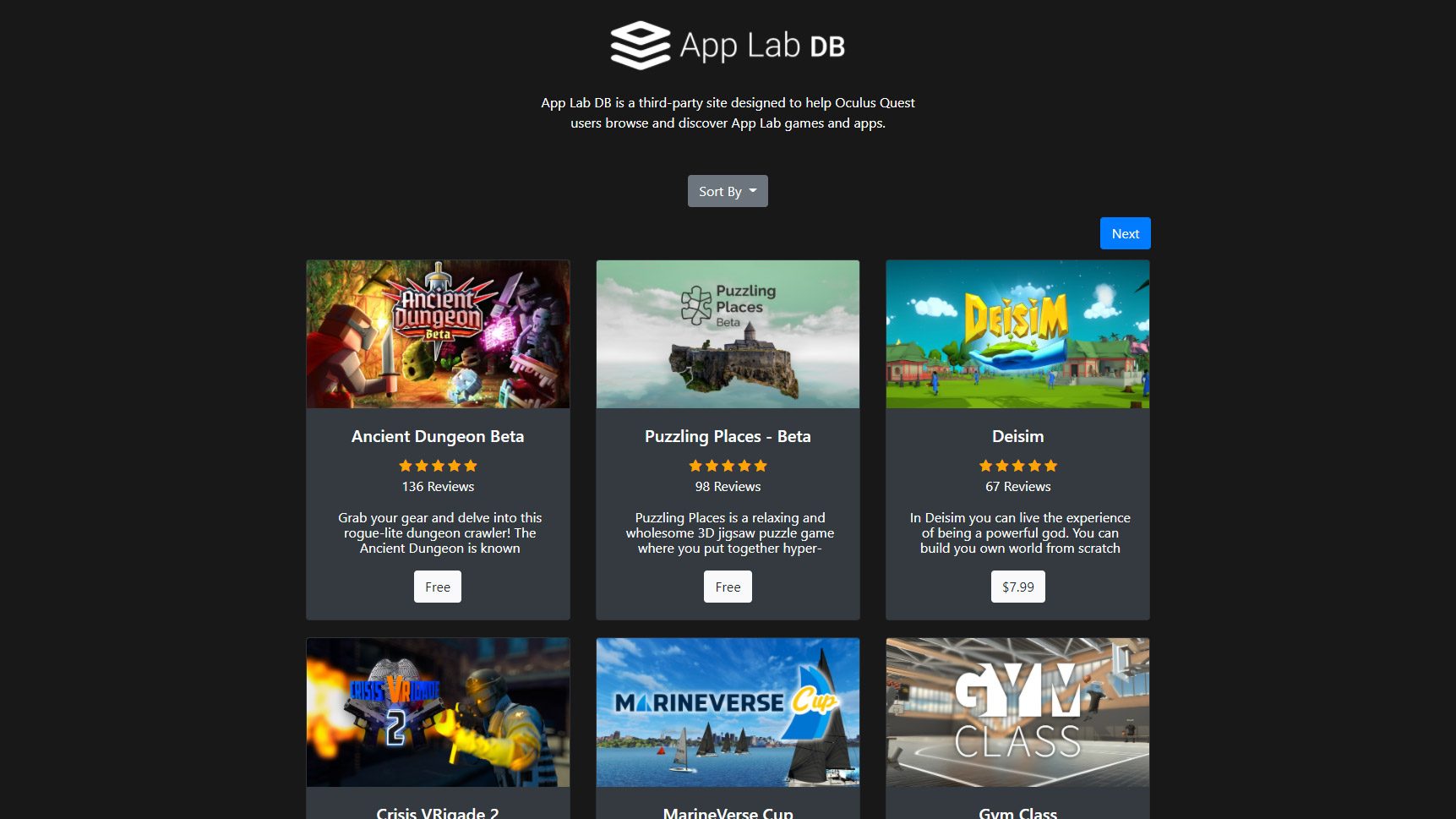
App Lab DB
Created by VR developer Rob Chinery, App Lab DB is a straightforward directory of any App Lab app which has been submitted to its database. The site pulls information directly from each app’s App Lab page, ensuring the info stays fresh without any extra work from developers. You can sort apps listed in App Lab DB by their popularity, recency, rating, or price.
Anyone is welcome to submit an App Lab app to App Lab DB by entering the app’s URL at the bottom of the page.
“This is a community focused project so I’m not looking to profit off of it or anything like that,” says creator Rob Chinery. “I just want to provide a place for users to discover quality content that’s not listed on the official Oculus store. […] I also do plan on adding additional search and filter functionality once the App Lab library expands enough to justify it.”
SideQuest
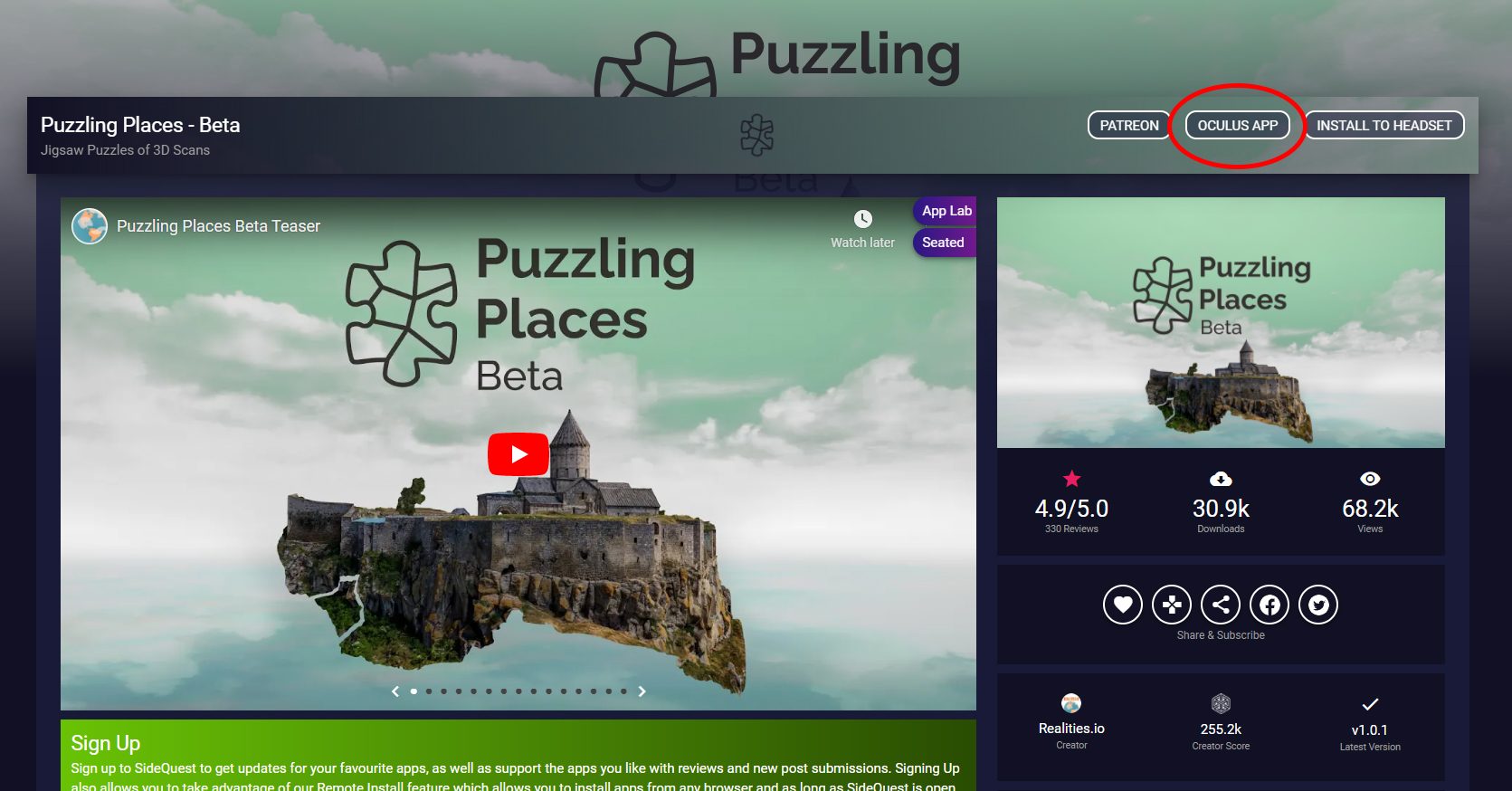
SideQuest is a longstanding alternative to the official Quest store. And while the platform is largely built around the ‘sideloading’ method as a back-door to skirt Oculus’ curation, the platform is also open to listing the easier-to-install App Lab apps as well. You can find all App Lab apps hosted on SideQuest in the App Lab section. To find the app’s App Lab page, click the ‘Oculus App’ link.
From one page, SideQuest allows developers to distribute APKs directly for sideloading or to point to the app’s corresponding App Lab page for easy installation. One benefit of SideQuest is that it allows developers to charge for their apps through alternative channels, such as through Itch.io, which means more money in the developer’s pocket compared to selling directly from their App Lab page (wherein Oculus takes a 30% cut of the revenue).
– – — – –
Have you discovered any great App Lab apps? Let us know in the comments below.
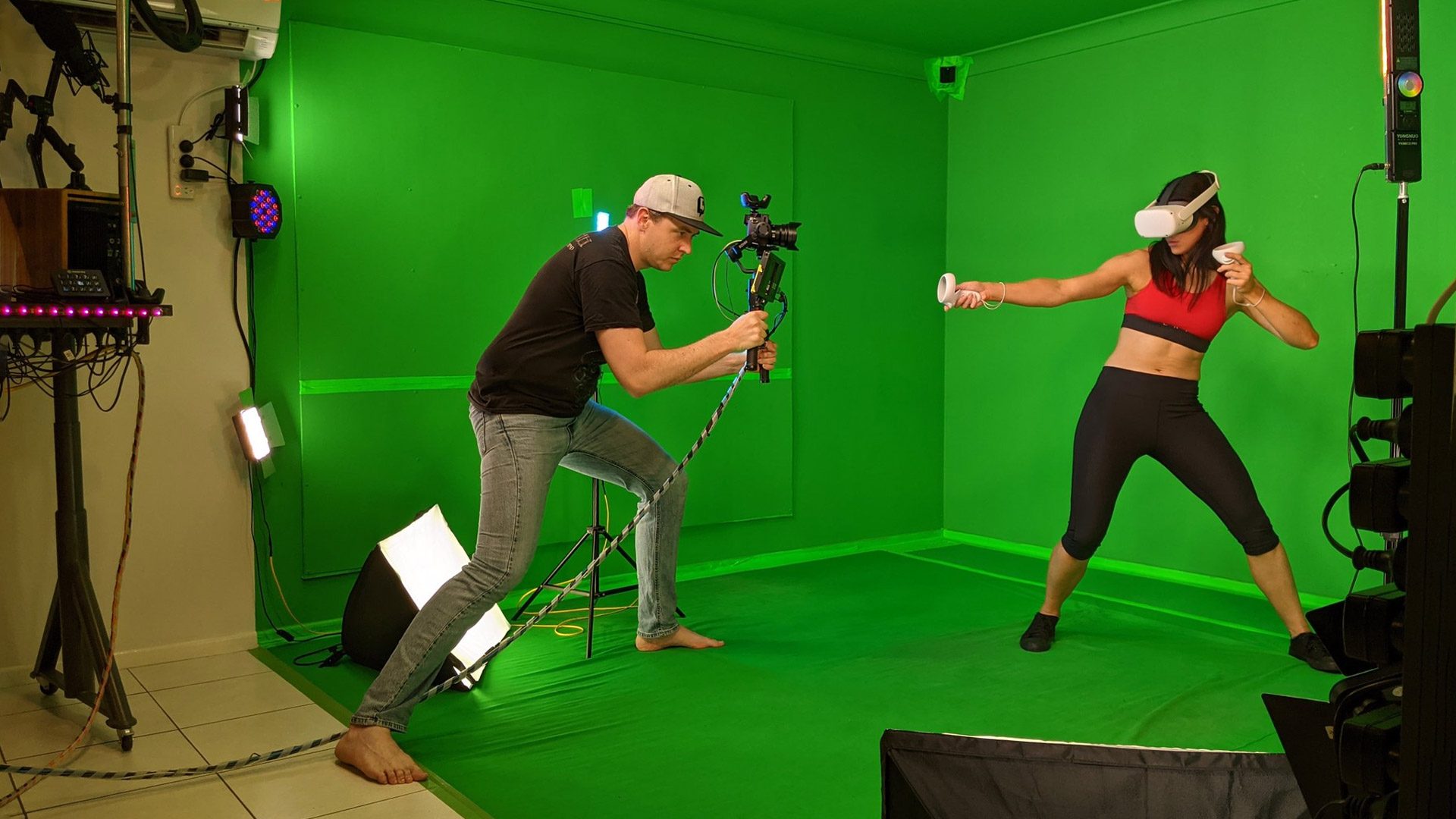
There’s no better way to show off a VR game than with a mixed reality captured which shows a real player inside of a virtual world; unfortunately setting it all up is no easy task. Luckily, YouTube channel TougeVR is sharing the secrets to great mixed reality streaming and capture in a video series called Mixed Reality Masterclass.
Whether you’re a content creator looking to stream VR content or a game studio making a high quality trailer for your VR game, mixed reality is the ideal way to give players a sense of what it’s really like to be inside virtual reality. But mixing virtual reality and real life footage together into one seamless shot isn’t exactly straightforward. Between hardware, software, framing, and lighting, there’s a lot to learn to make it work, let alone make it work well. Luckily, help has arrived.
Image courtesy TougeVR
The TougeVR channel is home to some of the best mixed reality content you’ll find on YouTube, and now host David is sharing the secrets of his mixed reality productions in a free video series called Mixed Reality Masterclass.
A masterclass indeed… David’s delightfully straightforward presentation goes over the complete setup process, covering camera selection and framing, controller calibration, latency correction, chroma key best practices, and plenty more.
While the first video in the series (above) will get you looking good with the basics, the second video introduces moving shots with a tracked camera, along with all the considerations you’ll need to make to your filming space to accommodate such shots.
TougeVR is promising more episodes of Mixed Reality Masterclass to come, so be sure to stay tuned!
Rec Room isn’t just one of the best free social VR apps out there. In the absence of hard sales data, it makes for an excellent watermark for how things are moving in the industry. Now, according to Rec Room’s downloads on Quest 2, the developers estimate that Facebook has potentially sold upwards of three million Quest 2 units in 2020 Q4 alone.
We’re no closer to knowing precisely how well the Quest 2 launch went, however Rec Room’s Shawn Whiting says the studio’s download data may point to a ballpark figure of two to three million Quest 2s sold between the headset’s October 2020 launch and the end of the year.
Seeing people talking about 1M Quest 2 headsets sold. Here's a @recroom slack msg
"The actual number is prob more like 2-3M Quest 2s in Q4. We saw 1M *new* Quest users in the past 3 months. Guessing our attach rate is 40% or lower. We def haven't gotten to all of them yet"
If the attach rate of 40% is close to accurate, that would put it somewhere near 2.5 million Quest 2 headsets sold before the beginning of 2021. Even supposing however that Rec Room had a hypothetical 100% attach rate, one million headsets sold in the first three months isn’t something to sneeze at—that alone would likely make it the fastest-selling VR headset to date.
At least when speaking directly to investors, Facebook CEO Mark Zuckerberg has historically downplayed its XR projects, couching both its AR and VR aspirations as long-term investments. And while Facebook probably won’t release any hard data on hardware sales until a future product is in sight, Zuckerberg said in an earnings call late last month that Quest 2 is “on track to be the first mainstream virtual reality headset.”
What Zuckerberg considers mainstream isn’t well-defined, however at Oculus Connect 5 in 2018, the company’s XR developer conference, he said that 10 million VR users was an important milestone for the company to reach in order to make a sustainable ecosystem for VR developers. Facebook might not be there yet, but another equally successful product launch could put them in a good position to live up to that self-imposed inflection point.
With more VR headsets on that market than ever, 2021 is shaping up to be a huge year for VR, and an excellent time for first-timers to jump in. In this article we’ve pulled together a concise look at the best VR headsets currently available.
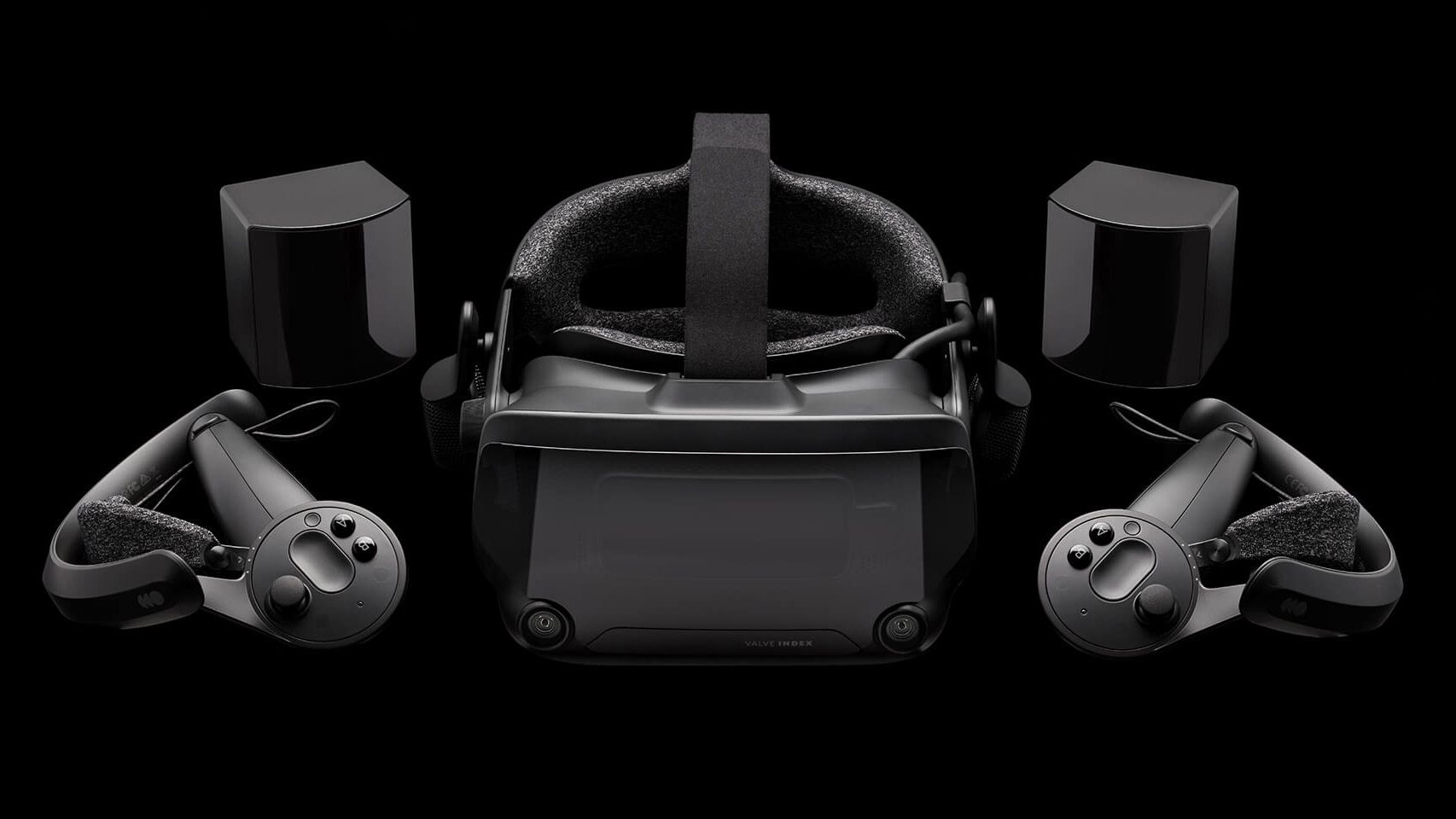
If you’re looking for the very best overall PC VR headset, Valve Index is our pick. It’s pricey compared to the rest, but has an excellent balance of quality, performance, and comfort. That’s why we called it “the enthusiast’s choice” in our full review of the headset.
Pros
Things to love about Index are its excellent tracking performance, wide field of view, quality controllers, great audio, and range of ergonomic adjustments that make it easy to dial in a comfortable and clear fit.
Index is one of the only headsets that offers an eye-relief adjustment. This let’s you bring the lenses as close to your eyes as comfortable, allowing you to maximize your field of view; it also makes the headset easier to adjust for glasses. Index has a physical IPD adjustment which ranges from 58mm to 70mm, making it easy to align the lenses with the width of your eyes for the sharpest visuals.
Cons
But Index isn’t perfect. Compared to other headsets on the market, the external tracking system is more work to set up, typically requiring two tracking beacons mounted on opposite corners of a room, stuck on a tripod, placed up high on a shelf, or screwed into your wall. They also need to be plugged into their own power outlets. And while Index has cameras on the front for a pass-through view, it isn’t as quick or useful as we’ve seen on other headsets. And did we mention the price tag of $1,000? You can get it cheaper though if you already have SteamVR Tracking base stations from an old Vive headset.
Valve Index Specs
Resolution
1,440 × 1,600 (2.3MP) per-eye (LCD)
Refresh Rate
80Hz, 90Hz, 120Hz, 144Hz
Lenses
Double element Fresnel
Field of View
~130° diagonal
Optical Adjustments
IPD, eye-relief
IPD Range
58–70mm
Connectors
USB 3.0, DisplayPort 1.2, 12V power
Cable Length
5m + 1m breakaway
Tracking
SteamVR Tracking 1.0 or 2.0 (external beacons)
Controllers
Valve Index controllers
Audio
Off-ear headphones, 3.5mm aux output
Microphone
Dual microphone
Pass-through Cameras
Stereo 960 × 960
Content Compatibility
Valve Index is officially compatible with the SteamVR library where the vast majority of VR content is available. If you’re looking to play content that’s exclusive to the Oculus PC library (like Asgard’s Wrath) you can use the free but unofficial Revive mod to play Oculus PC content on Valve Index. It may take some tweaking for performance and controller inputs, but for the most part Oculus content will play reasonably well on Index.
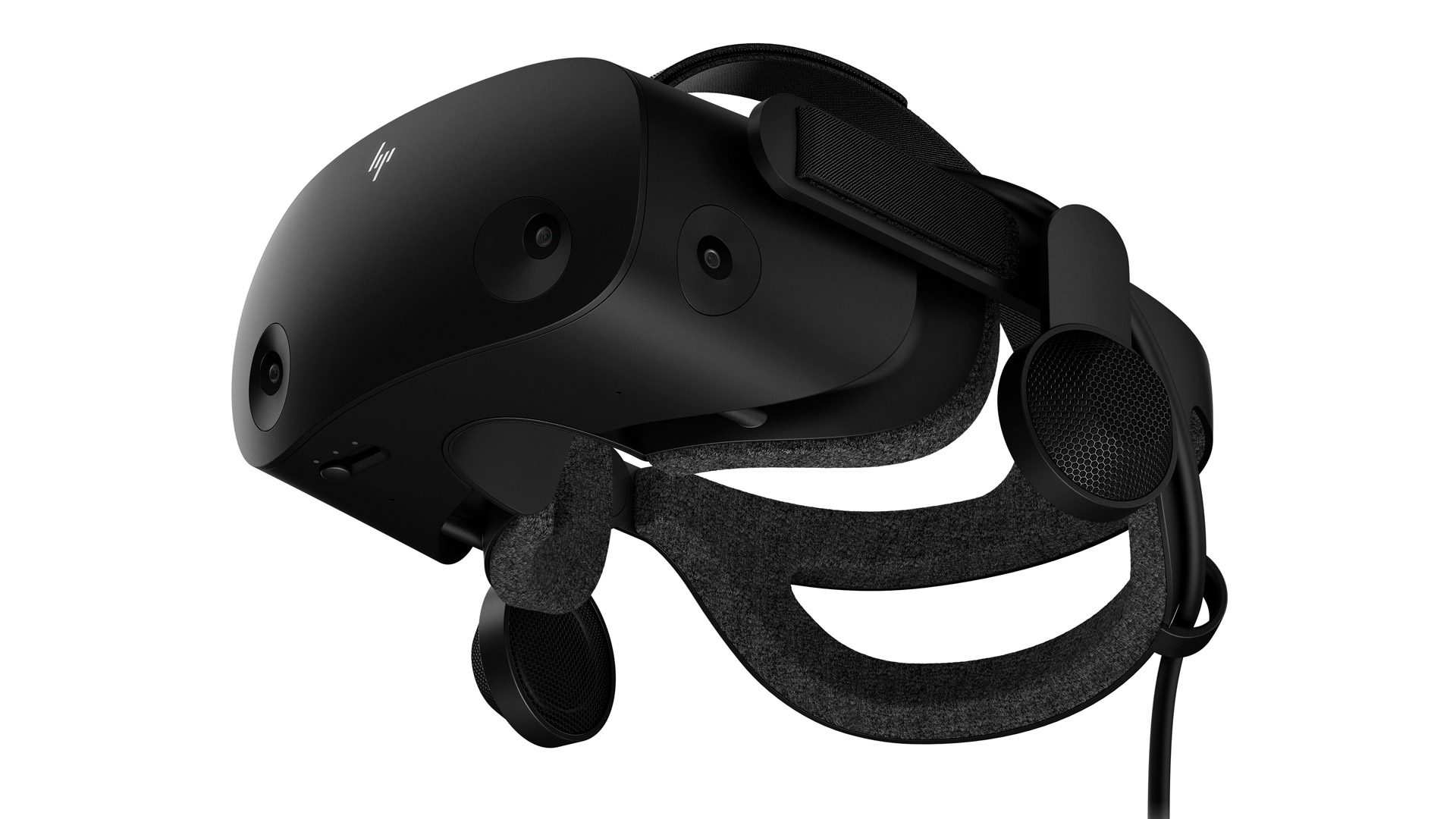
While Valve’s Index has great all-around performance, HP’s new Reverb G2 is the headset you want if resolution is your most important consideration. Reverb G2 should be on your radar especially if you’re thinking of picking up a VR headset for seated PC VR games like driving and flight simulators—find out why in our full review.
Pros
When it comes right down to it, G2’s defining feature is its class-leading resolution of 2,160 × 2,160, which can look downright amazing with the right content. Thanks to a collaboration between Valve and HP, G2 also borrows the excellent headphones of Valve’s Index headset and brings improved controllers compared to previous WMR headsets. Not to mention the headset has inside-out tracking which makes it easier to use thanks to no external trackers. And who can argue with it being nearly half the price of the full Valve Index kit?
Cons
Although it boasts improved controller ergonomics compared to prior WMR headsets, Reverb G2’s controller tracking still has more latency and less reliability than its peers, along with less detailed (and somewhat noisy) haptics. The controllers will get you through most games just fine, but if you plan to primarily play competitive or fast-paced games, the controllers on other headsets tend to deliver better results. As for field of view, G2 is similar to most of its peers but loses out compared to Index.
HP Reverb G2 Specs
Resolution
2,160 × 2,160 (4.7MP) per-eye (LCD)
Refresh Rate
90Hz
Lenses
Single element Fresnel
Field of View
114° diagonal
Optical Adjustments
IPD
IPD Range
60–68mm
Connectors
USB-C, DisplayPort, Power
Cable Length
6m
Tracking
Quad on-board camera (no external beacons)
Controllers
Reverb G2 controllers
Audio
Off-ear headphones
Microphone
Yes
Pass-through Cameras
Yes
Content Compatibility
HP Reverb G2 works natively with the Windows Mixed Reality store, but very few VR applications are available there. Fortunately a free and official plugin from Microsoft also makes it compatible with SteamVR content. If you’re looking to play content that’s exclusive to the Oculus PC library (like Asgard’s Wrath) you can use the free but unofficial Revive mod to play Oculus PC content on Reverb G2.
Although Quest 2 is a standalone headset (which means games run directly in the headset without plugging into a PC) it also has a feature called Oculus Link which gives you the option to run PC VR games by plugging into a PC.
Pros
Along with the useful passthrough feature, high resolution display, and great controllers, Quest 2 is a pretty great all-around headset. The hard-to-beat price makes it a great value, especially considering the fact that the headset also runs standalone VR games from the Oculus Quest store. Oculus has also consistently released softwares updates to improve the headset’s performance and features.
Cons
Unfortunately the cable that comes with Quest 2 isn’t long enough to work well for Oculus Link, and we can’t recommend the official cable because of its crazy $80 price tag. Thankfully you can get 26 feet worth of Oculus Link cable for $34.
Without being plugged into a computer, Quest 2 can only play games from the Oculus Quest library. If you plug into a computer via Oculus Link, you’ll have access to everything in the Oculus PC and SteamVR libraries as well. That means that Quest 2 is compatible with the vast majority of top VR content out there, as long as you’ve got a powerful PC to plug the headset into.
The Best Standalone VR Headsets in 2021
Standalone VR headsets are fully self-contained and don’t need to plug into anything. They generally offer high ease-of-use thanks to their all-in-one nature and lack of tether. With their low overall cost (thanks to not needing a high-end PC) standalone headsets are a great way to take your first step into VR.
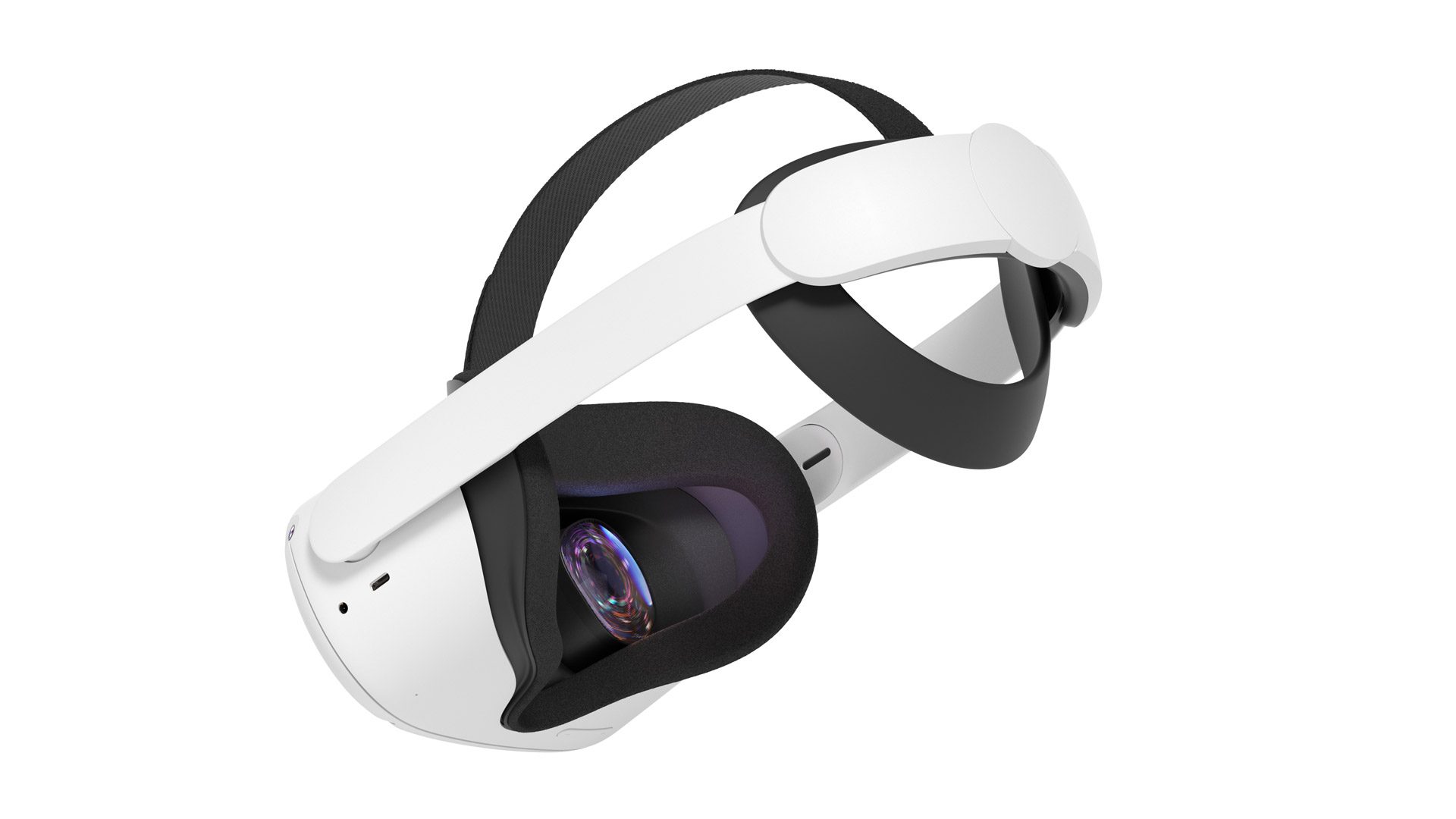
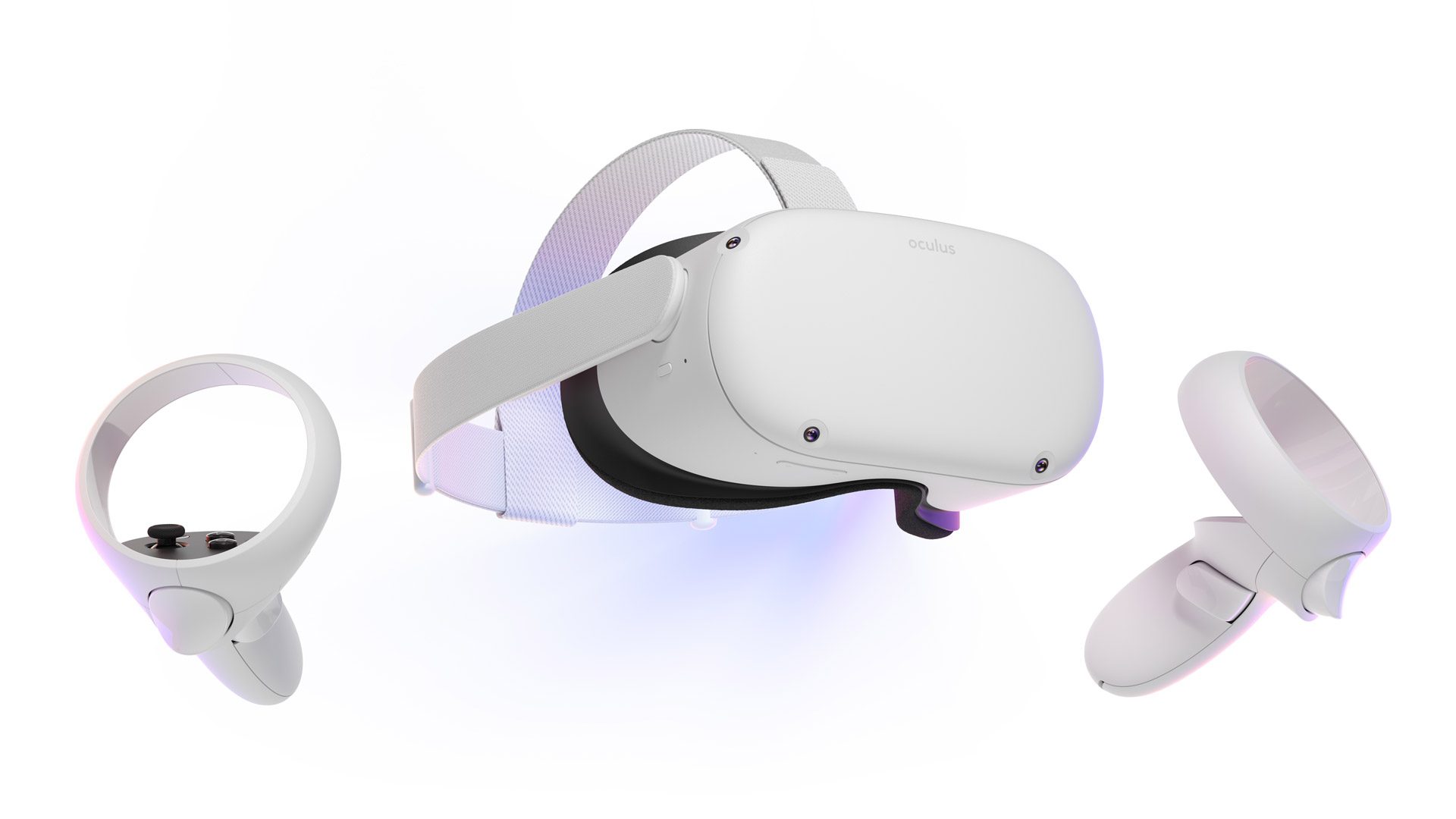
Quest 2 is an upgrade over its predecessor in almost every way, though it’s worth noting that you need a Facebook account to use the headset.
Pros
With an impressive resolution, powerful Snapdragon XR2 processor, useful ‘passthrough’ view feature, and great controllers, there’s a lot to like about Quest 2. What’s more, if you ever decide to upgrade to PC-powered VR, Quest 2 can plug into your computer and be used like a PC VR headset. When it comes to overall value, no other standalone headset is in the same ballpark right now.
Cons
There’s a few things we wish were better though. As we found in our full Quest 2 review, the included soft headstrap just isn’t that comfortable, which is why we recommend the Elite Strap ($50 on Amazon) or Elite Battery Strap (bundled with a case for $130 on Amazon) accessories if you’re a serious VR user.
The hidden built-in speakers are convenient but we wish they were more powerful for better immersion (luckily there’s a 3.5mm headphone jack if you want to use your own headphones). And while Quest 2 has a pretty strong game library, since it’s a standalone headset you won’t be able to play any of the big PC VR games like Half-Life: Alyx or Asgard’s Wrath unless you have a powerful PC to plug into.
Oculus Quest 2 Specs
Resolution
1,832 × 1,920 (3.5MP) per-eye [LCD]
Refresh Rate
60Hz, 72Hz, 90Hz
Lenses
Single element Fresnel
Field of View
~90° diagonal
Optical Adjustments
IPD, eye-relief (via included spacer)
IPD Range
58mm, 63mm, 68mm
Processor
Snapdragon XR2
RAM
6GB
Storage
64GB / 256GB
Connectors
USB-C
Battery Life
2-3 hours
Tracking
Oculus Insight (no external beacons)
Controllers
Oculus Touch v3
Audio
In-headstrap speakers, 3.5mm aux output
Microphone
Yes
Pass-through Cameras
Yes
Content Compatibility
Oculus Quest 2 is compatible with all content in the Oculus Quest library. If you have a gaming PC (or get one in the future), you can plug it into your PC to play content in the Oculus PC library and the SteamVR library.
Yup, our value pick for standalone headset is the same as our ‘Best’ pick: Quest 2! But if you’re brand new to VR and are just looking for a taste, you can probably hold off on the Elite Strap accessory and save yourself $50 in the meantime. If you find yourself using the headset often you can always add the strap later.
See the section above for thoughts and details on Quest 2.
The Best Console VR Headsets in 2021
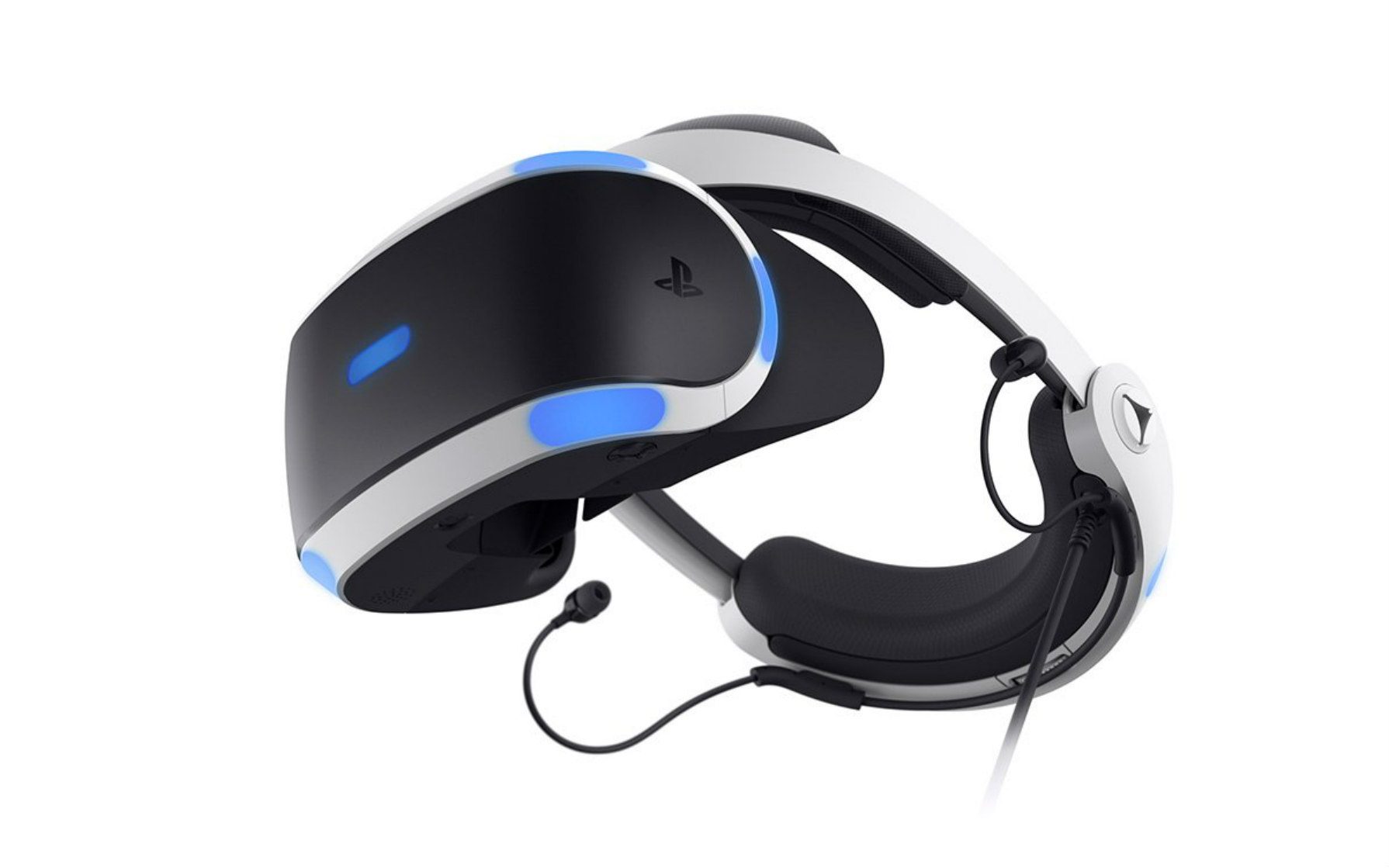
If you know anything about VR, you’ll already know what we’re going to say! PlayStation is the only console maker that currently supports a VR headset (sorry Xbox fans), and PlayStation VR is the only console VR headset you can use. That makes PSVR ‘the best’ console VR headset by default, but that doesn’t necessarily mean we recommend it.
Image courtesy Sony
Our Take
PSVR launched in late 2016 and was a great headset for its era, including a handful of excellent exclusive VR games that you won’t find anywhere else. However, the headset is officially past its prime in 2021 and feels ‘last generation’ in resolution, tracking, and controllers compared to what’s available elsewhere in the VR landscape.
It’s hard to recommend buying the four year old PSVR today as it’ll still cost you around $350 new [Amazon]. By all means, if you find it somewhere on sale or used for cheap it might be worth picking up to run through some of Sony’s great exclusive VR games, but otherwise you may want to wait and see what Sony has planned for VR on its next-gen PS5 beyond mere backwards compatibility with PSVR.
PSVR Specs
Resolution
960 x 1,080 (1.0MP) per-eye (RGB OLED)
Refresh Rate
90Hz, 120Hz
Lenses
Single element non-Fresnel
Field of View
100° diagonal
Optical Adjustments
Eye-relief
Connectors
USB, HDMI
Cable Length
4.4m
Tracking
Stereo camera (external camera)
Controllers
DualShock 4, PS Move, PS Aim
Audio
Earbuds, 3.5mm aux output
Microphone
Yes
Pass-through Cameras
No
Content Compatibility
PlayStation VR is only compatible with VR content in the PlayStation store which includes a handful of excellent exclusives not available on PC like Astro Bot Rescue Mission and Blood & Truth. You can also use the headset to play non-VR PS4 content in a ‘theater mode’ through the headset, but with relatively low resolution it’s not something you’re likely to do often. The vast majority of PSVR titles are also backwards compatible with PS5.
Tundra Tracker, the upcoming SteamVR tracker alternative to the Vive Tracker, was originally expected to hold a Kickstarter in January, but the company behind the project, Tundra Labs, says the crowdfunding campaign has been pushed back in light of delays in component sourcing.
Image courtesy Tundra Labs
In the latest official update on the project, Tundra Labs notes, “Right now the semiconductor industry is going through incredible supply shortages due to a ‘double whammy’ of dropping factory capacity due to COVID-19 and skyrocketing demand also due to the pandemic. For this reason, since November 2020, we have been tracking components used in the Tundra Tracker and many are showing 26 to 30 week lead time for high volume deliveries. This means that If we place orders today, components may not be delivered until August. Thankfully we already started placing component orders in Q4 of 2020. We are also working directly with vendors to ‘pull in’ deliveries as much as possible and pay expedites when available.”
Given the long lead time, Tundra Labs says it has opted to delay the Kickstarter campaign to “shorten the time between when crowdfunding ends and when all backers receive their orders.”
The company now plans to launch the Kickstarter on March 29th for 30 days, and expects the first units to start shipping to early-bird backers starting in mid-June, while the bulk of backers can expect shipments in mid-September.
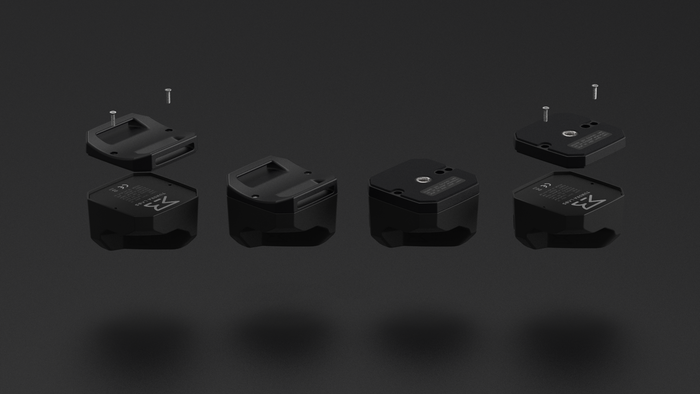
Beyond Kickstart plans, the company also revealed some more details on the Tundra Tracker’s design, including a closer look at how the swappable base plates will work.
Image courtesy Tundra Labs
“The rendering above demonstrates the production product design, especially about the swappable baseplates for Tundra Tracker. Based on feedback there will (at minimum) be options for an integrated strap loop baseplate as well as a backwards compatible with 1/4-20 mounts.” The company says it’s investigating additional base plates for other uses.
Tundra Labs also shared the first look at a functional prototype in action:
In addition to being smaller and lighter, Tundra Labs is aiming to make the price of the Tundra Tracker slightly less than the Vive Tracker, though pricing hasn’t been finalized yet. “We are still resolving the pricing question,” the company said in its latest update.
Oculus Quest 2 is one of the best headsets for first-time VR users, and it’s bringing plenty of new users into VR for the first time. Here’s seven tips worth knowing right out of the gate to improve your experience.
Updated – February 5th, 2021
1. Turn on Passthrough Background & Passthrough Shortcut
‘Passthrough’ is when you use the Quest 2 cameras to look outside the headset. You will have seen this when you first set up the device. And while it might seem novel at first to have your ‘virtual home’ be some sci-fi apartment or fantasy landscape, I can tell you now that using the passthrough view as your background actually makes the headset much easier to use.
That’s because you can put on the headset first and then easily see where your controllers are to pick them up, instead of blindly feeling around. This is also much nicer than putting on your headset while the controllers are dangling from your wrists by their straps.
Also, whenever you go back to your home space you’ll be able to see your relative position within your playspace boundary, allowing you to move back to the center in case you’ve wandered toward the edge (don’t be the next person to post a picture of the TV you broke while playing a VR boxing game).
And if you want to be able to quickly peek outside your headset, you don’t have to bother taking it off. With Passthrough Short enabled, you can double-tap on your headset to instantly toggle the passthrough view on and off to see who is calling your name or where to set your controllers down before you take off the headset. Here’s how:
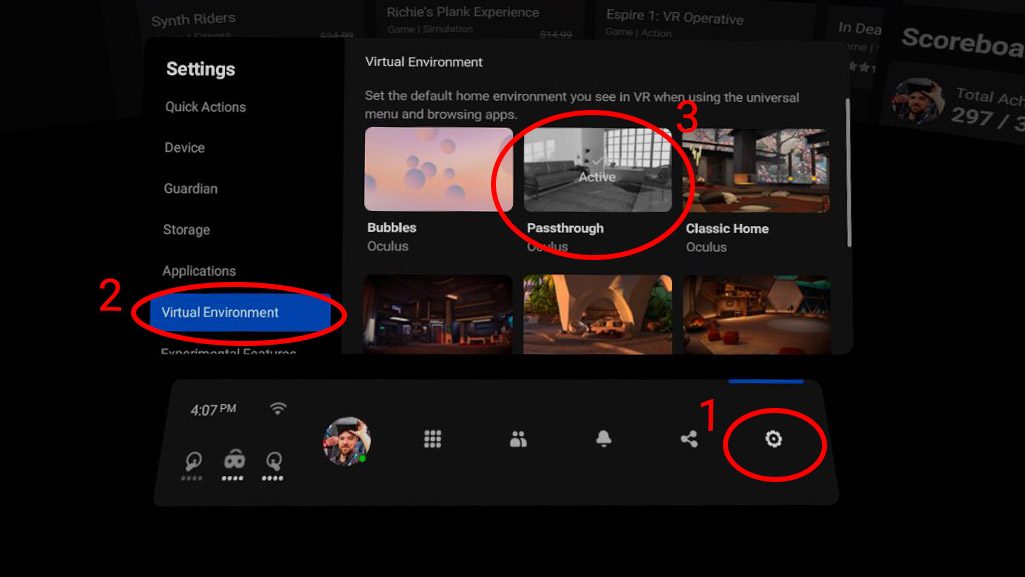
Turn on Passthrough Background
In your headset, bring up the Quest menu by pressing the Oculus button on your right controller. Find the Settings section (gear icon).
On the left of the Settings section select ‘Virtual Environment’
Now select ‘Passthrough’ as your virtual environment option
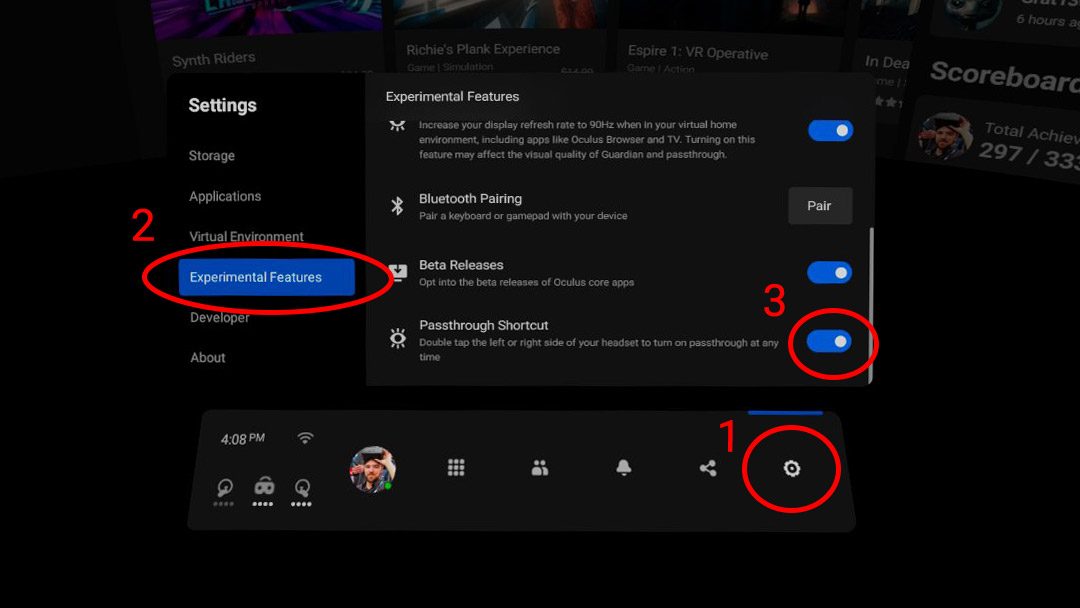
Turn on Passthrough Shortcut
In your headset, bring up the Quest menu by pressing the Oculus button on your right controller. Find the Settings section (gear icon).
On the left of the Settings section select ‘Experimental Features’
Now scroll until you find ‘Passthrough Shortcut’ and flip the switch
When you return to your virtual home space you’ll see that you’re now just standing in your room with the Quest menus floating in front of you. Any time you can’t see the outside world, double-tap the side of your headset with your hand or controller to instantly see into the real world. Double tap again to return to VR.
2. Use Voice Commands to Navigate Quest 2 & Launch Apps
Voice Commands on Quest 2 are often the fastest and easiest way to navigate through your headset’s menus and launch games. Rather than fumbling through the app list, you can ask your headset to “launch Beat Saber.” Rather than digging through the Settings menu, you can ask “show me Guardian settings.” And rather than searching for a new game by typing the name into the search bar, you can say “search for The Walking Dead.” Here’s how:
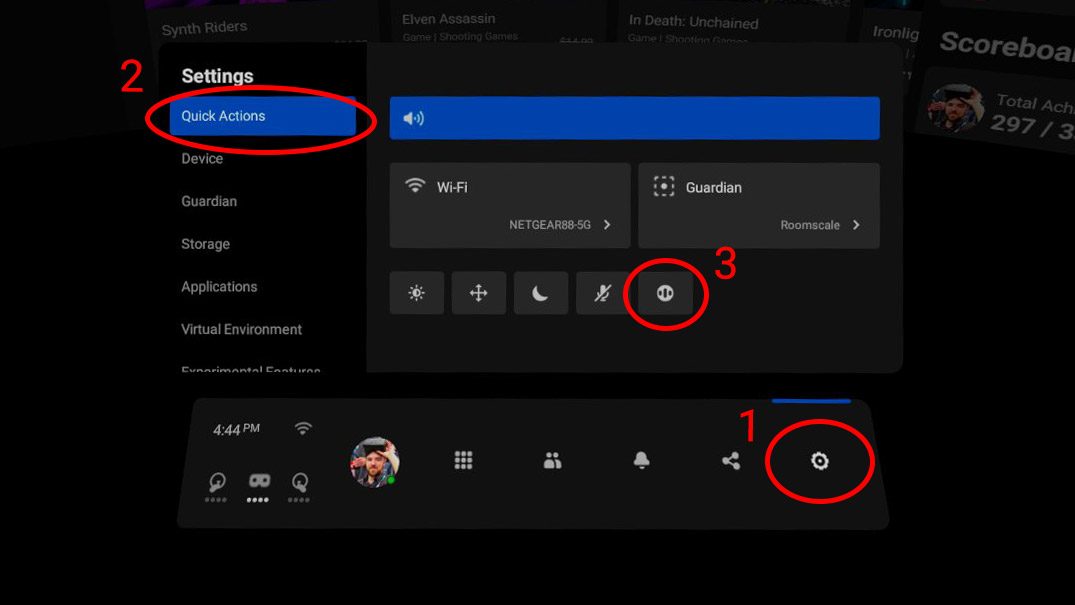
In your headset, bring up the Quest menu by pressing the Oculus button on your right controller. Find the Settings section (gear icon).
In the Quick Actions section, click the circular Voice Commands icon to the right of the microphone (see photo below for the icon in question).
This will launch the Voice Commands setup and teach you what you can say. Once setup is complete, just double-tap the Oculus button on your right controller to trigger your headset to listen, then ask away!
3. Record, Stream, or Cast Your VR Gameplay on Quest 2
With something as cool as VR, it’s natural to want to share the experience. Luckily Quest 2 has many sharing options built right in. You can record videos of your gameplay, take screenshots, cast a video to your phone or TV, or even stream to viewers online. Here’s how:
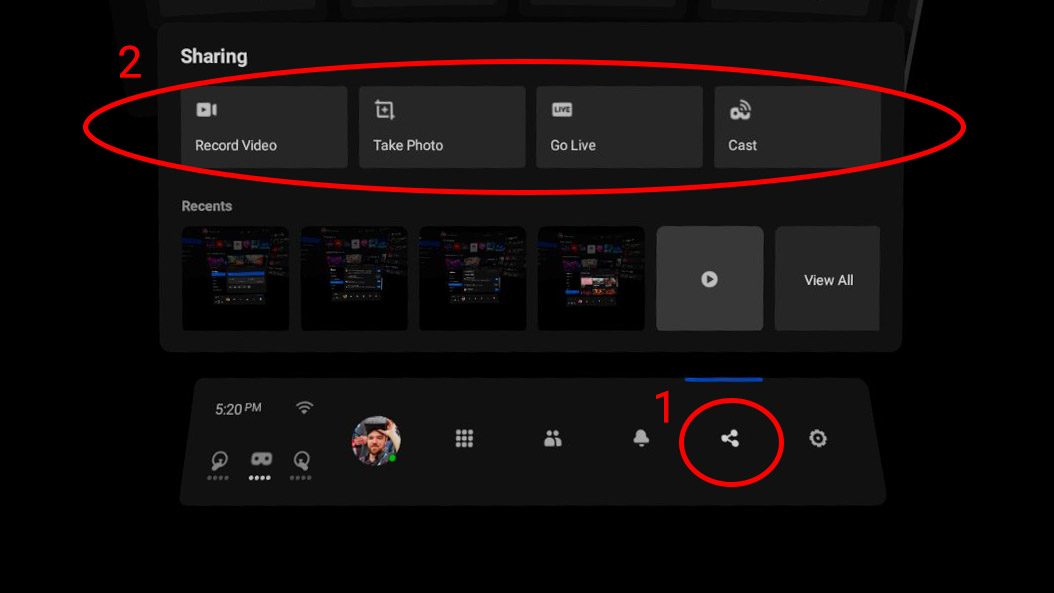
In your headset, bring up the Quest menu by pressing the Oculus button on your right controller. Find the Share section (three dots connected by lines icon).
At the top of the Share menu you can now choose between Record Video, Take Photo, Go Live, and Cast.
You can even use the Voice Commands (that we shared in tip #3) to say “record video,” “take screenshot,” “cast,” or “stream” to quickly do any of these actions in the midst of gameplay.
Casting allows you to stream video of your experience to local devices. You can cast to your smartphone through the Oculus smartphone app. You can also cast to any compatible devices on your network like a TV with Chromecast.
Go Live allows you to stream your Quest 2 experience out to the internet, but unfortunately you can only stream to Facebook.
Recorded videos and captured photos are stored on the headset, you can access them by clicking the ‘View All’ button in the Share menu. You can also plug Quest 2 into a computer to download videos and screenshots for editing and sharing.